CloudStream Official APK – Download Latest Version For Android with All Repositories
Download CloudStream APK Latest v4.8.0 free and stream or download movies, TV shows, and anime on Android, all through free community-built extensions. The app is open source, ad-free, and does not require an account to use.
Get the APK and use our complete list of CloudStream repositories to find and install the extensions you need.
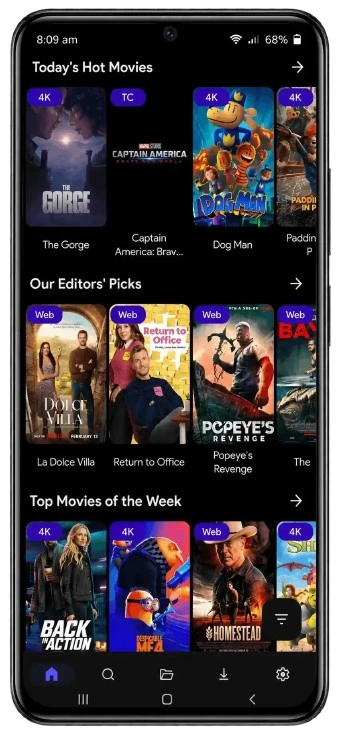
App Information
| Detail | Value |
| App Name | CloudStream |
| Latest Version | v4.8.0 |
| Developer | recloudstream (open-source community) |
| File Size | 68 MB |
| Android Required | Android 5.0+ |
| Price | 100% Free |
| Account Required | No |
| Available on Play Store | No |
What Is CloudStream?
CloudStream, also known as CloudStream 3, is an open-source Android app for watching movies, TV shows, anime, and other video content. The project is developed by the community, and its source code is available on GitHub. Unlike services such as Netflix, Amazon Prime Video, and Disney+, CloudStream does not work as a subscription streaming service with its own catalog.
Instead, CloudStream uses repositories and extensions to find content from different sources. You install the extensions you want, and they add those sources to the app. This lets you search for and watch content from different providers in one place, without having to open a separate app for each source.
How to Install CloudStream on Android
CloudStream isn’t available on the Google Play Store, so you install it manually using an APK file. If this is your first time doing that, you’ll just need to allow your browser or file manager to install apps from unknown sources before you can proceed.
- Open your phone’s Settings and search for Install Unknown Apps. Depending on your Android version, you may find it under Security, Apps, or Special Access.
- Select the browser you’re using to download the APK and turn on Allow from this source.
- Download the CloudStream APK using the download button on this page and wait for the file to finish downloading.
- Open the downloaded APK from your notification or the Downloads folder. If you can’t find it there, open your file manager and go to the Downloads folder.
- Tap Install and wait for the installation to finish. Once it’s done, tap Open to launch CloudStream.
When you open the app for the first time, the home screen may look empty. Don’t worry about that. CloudStream doesn’t come with its content sources already set up, so you’ll need to add repositories and install extensions before you can browse and watch content.
If CloudStream APK Doesn’t Install Correctly, Try This
- App not installed: If you already have an older CloudStream version on your phone, uninstall it and try installing the new APK again.
- APK won’t download: Check your internet connection and try switching between Wi-Fi and mobile data.
- Can’t find Install Unknown Apps: The location of this setting varies between Android phones. Try searching for “Install Unknown Apps” in your Settings app, or check Apps > Special Access.
- CloudStream crashes after installation: Check that your phone meets the app’s current Android requirements and that you downloaded a compatible APK version.
Still stuck? Check our full cloudstream not working guide.
How to Use CloudStream App
The first time you open CloudStream, the home screen may look empty. That’s normal. Unlike a regular streaming app, CloudStream doesn’t come with a ready-made catalog of movies and shows. You first need to add a repository and install an extension before content can appear in the app.
Adding Repositories
First, you need to add a repository. A repository is a place where CloudStream gets its extensions from. You don’t need to worry about the technical side of it, just add the repository and you’ll be able to see the extensions available inside it.
- Open CloudStream and tap Settings in the bottom-right corner.
- Tap Extensions, then choose Add Repository.
- Enter the repository URL or its shortcode. You can use either one.
- CloudStream may show a warning before opening the repository. This is because the repository comes from outside the app. Tap Open Repository to continue.
- You should now see the extensions available in that repository.
Adding Extensions
An extension is an add-on that lets CloudStream access a particular content source. You can install one or several extensions depending on what you want to use.
- Find an extension you want in the repository and tap the download icon beside it.
- Once it’s installed, return to the Home screen.
- Tap the extension selector, which may show “None” if you haven’t selected one yet.
- Choose the extension you just installed.
That’s it. Once an extension is selected, CloudStream can start showing the content available through that extension.
You can also add more repositories and install additional extensions if you want more sources. If you want to know more repositories and extensions see our complete CloudStream repositories and extensions guide.
Finding and Playing Something
Once an extension is installed, you can start looking for something to watch.
- Use the search option at the top to search within the extension you currently have selected.
- The search option on the Home screen can search across the extensions you’ve installed.
- Select a movie, TV show, anime, or other title to open its details and see the available information and sources.
- Choose an available source and tap Play to start watching.
If one source doesn’t work, try another available source for the same title. Different sources can behave differently, so switching to another one may solve the problem.
Is CloudStream Safe to Use?
Yes. It’s open source, meaning the code is public and anyone can check it, and it only asks for storage and internet permissions.
CloudStream can use third-party repositories and extensions, so you shouldn’t add random links just because you find them in a comment, forum, or social media post.
For the safest setup, download CloudStream from a trusted source and use repositories from a reliable, regularly maintained list. It’s also a good idea to check the permissions requested by the app and avoid installing anything that asks for permissions that don’t make sense for its purpose.
Worth knowing: CloudStream used to stream content directly inside the app itself. A DMCA takedown forced that to stop, which is why it now works entirely through repositories and extensions instead.
CloudStream Repositories and Extensions
Repositories change often as community projects go up and down. We keep a separately maintained, tested list here: cloudstream repositories and extensions. Add repos only from trusted sources like that, since dead or fake repo links are a common complaint.
Key Features of CloudStream
Stream or Download
Watch available content directly in the app or download it for later. Download options depend on the source you’re using.
Multiple Content Sources
CloudStream can use different extensions, giving you access to different content sources instead of relying on a single provider.
No Account Required
Start using the app without creating a separate account or signing up for a subscription.
Ad-Free App Experience
CloudStream itself does not add advertisements to its interface or video player.
Built-in Video Player
Play videos directly inside CloudStream, with support for external video players if you prefer one.
Chromecast Support
Cast compatible videos from your phone to a Chromecast device or compatible TV.
Android TV Support
A TV-oriented interface makes it possible to use and navigate CloudStream on supported Android TV devices.
Multiple Sources Per Title
See more than one source when opening a movie or episode. If one doesn’t work, try another.
Subtitle Controls
Choose and adjust subtitle options while watching, when available through the selected source.
Download Queue
Manage multiple downloads at once instead of handling them one at a time.
Playback Controls
Adjust playback speed, brightness, and zoom for more control while watching.
Search Across Extensions
Search for content through your installed extensions instead of checking each one manually.
Watch TV Shows by Episode
Browse episodes for a series and select the one you want instead of searching each one separately.
Customizable Interface
Different interface and theme options, with ongoing UI and usability improvements in new releases.
Open Source
The source code is publicly available on GitHub, letting the community contribute to development.
Regular Updates
The project continues to release updates that add features, improve the interface, and fix bugs and other issues.
How to Update CloudStream
Keeping CloudStream updated is pretty simple. The main app needs to be updated manually by installing the newer APK, while extensions can have their own update process.
- Download the latest CloudStream APK from this page.
- Open the downloaded APK and tap Install, just like you did when installing CloudStream for the first time.
- Android will recognize the newer version and update the existing app rather than installing a separate copy.
- Your existing settings and repositories should normally remain in place after the update.
If the update doesn’t install properly, try removing the current version and installing the latest APK again. Keep in mind that a fresh installation may require you to add your repositories again.
CloudStream Repositories
| Repository | Direct Link | Language | Shortcode |
| English | Click Here | English | 6wyw1RnS |
| Multilingual | Click Here | Mixed | Bwyw1S3k |
| Arabic | Click Here | Arabic | Jwyw1ZiR |
| Arabico عربي | Click Here | Arabic | arb |
| Turkish Providers | Click Here | Turkish | KekikAkademi |
| CakesTwix | Click Here | Ukrainian | cakes |
| French (zzikozz) | Click Here | French | zzikozz |
| GramFlix | Click Here | French | gramflix |
| German Providers | Click Here | German | gpr |
| IndoStream | Click Here | Indonesian | indos |
| Horis (Chinese/Mandarin) | Click Here | China | Owyw2lbO |
| Redowan’s BDIX | Click Here | English, Hindi, Bengali | redowan |
| Saimuel Repo | Click Here | Portuguese | saim |
CloudStream vs Other Free Streaming Apps
| Feature | CloudStream | Typical Free Streaming APK |
| Content source | Extensions you choose | Built-in, fixed |
| Open source | Yes | Rarely |
| Ads | None | Common |
| Account needed | No | Sometimes |
| Setup | Add a repo first | Works right away |
| Customization | High | Low |
| Device support | Android, TV, Firestick, PC | Varies |
What’s New in the Latest Version
The latest v4.8.0 update is mostly about fixing things and improving the way the app works, rather than adding a completely new set of features. Here are the main changes included in this release:
- Skip intros more easily: The intro-skip database has been added, making it easier to skip known intros when the feature is supported.
- More information on TV: TV users get a new metadata overlay, giving you additional information while browsing content on a larger screen.
- More external players: CloudStream now supports more external video players, so you have more options if you prefer watching through a different player.
- Download fixes: Several problems related to downloading have been fixed, making downloads more reliable than in previous versions.
- Security improvements: The update also includes fixes for some security issues found in the previous version.
- Updated filler database: The filler database has been updated, which helps improve the app’s handling of filler episodes.
- UI and UX improvements: Some parts of the interface have been updated to make the app feel better to use.
Pros and Cons
Pros
- Open source and free, no ads inside the app
- No account or login needed
- Fully customizable through repositories
- Active community keeping extensions updated
- Works on phones, tablets, Android TV, and Firestick
Cons
- Needs setup before any content shows
- Extension reliability depends on third-party maintainers
- Some repos need a VPN if your ISP blocks GitHub links
- Not available for iOS
Why Use CloudStream Over Other Free Apps?
CloudStream works a little differently from a typical streaming app. Instead of giving everyone the same fixed catalog, you choose the extensions and sources you want to use, so the content available in your app depends on how you set it up.
- Continue watching: You can go back to a movie or show you started earlier and pick up from where you stopped.
- Watch progress: Keep track of shows you’re watching and see what you’ve already completed, so you don’t have to remember which episode you were on.
- Favorites: Save movies and shows you want to come back to later instead of searching for them again.
- Choose your sources: You’re not limited to one built-in catalog. You can install different extensions and use the sources that work best for you.
- One app for different sources: Once your extensions are set up, you can search and browse through them from CloudStream instead of opening a separate app or website for each source.
- More control over playback: CloudStream gives you control over things like subtitles, playback settings, and the video player, with the option to use an external player if you prefer.
Frequently Asked Questions
Conclusion
CloudStream might look a little confusing the first time you open it, especially when you see an empty home screen. Once you add a repository and install an extension, though, it starts to make sense.
From there, you can search for something you want to watch, choose a source, and play it. You can also add more extensions later if you want to try different sources. Not for you? Check our cloudstream alternatives guide for other extension-based streaming apps.